

Same content in a rebuilt sidebar: v0.10.2 left vs v0.11.0 right. Note the add buttons on the section headers.assets/hero-sidebar-before-after.png Same...
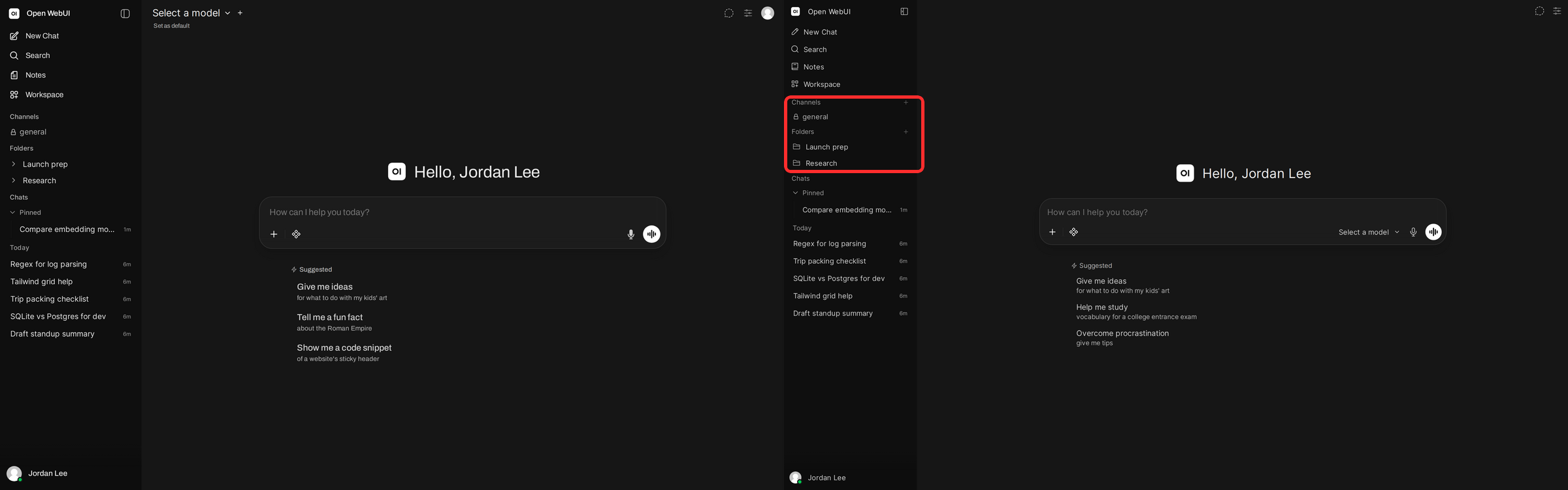
Same content in a rebuilt sidebar: v0.10.2 (left) vs v0.11.0 (right). Note the add buttons on the section headers.
Most releases add things, but this one is different. v0.11.0 is mostly about where things live and how fast you can reach them.
If you've used Open WebUI for a while, you know the rough edges. Sidebar groups each behave a little differently. Your personal settings live in one modal, admin settings live in a separate panel, and every hunt for a setting starts with the same "which one was it?" moment. You can look up your keyboard shortcuts, but you can't change them.
v0.11.0 works through that list. Here's what changed, where things moved, and why.
A new front door#
The redesign reaches all the way to minute zero. A fresh install used to greet you with an art-gallery slideshow and an invitation to "explore the cosmos wherever you are." The new welcome screen tells you exactly what you're getting: "Welcome to your AI home. Run AI on your own terms. Connect any model, extend with code, and protect what matters without compromise." There's a proper Get started button, and Read the docs now sits one click from the very first screen. That means less time wondering what this thing does and more time actually doing something with it. You open the app, you understand it, you start. Your first five minutes belong to you, not to a slideshow.
 The first screen of a fresh install: v0.10.2 (left) and v0.11.0 (right)
A quieter interface, everywhere#
The release notes call it a redesign "from the ground up," and it shows in the details: a narrower conversation column, lighter typography, tidier spacing, consistent menus and dropdowns, and clearly outlined text boxes. No single screenshot sells it. It's the accumulated effect of hundreds of small decisions finally pulling in the same direction.
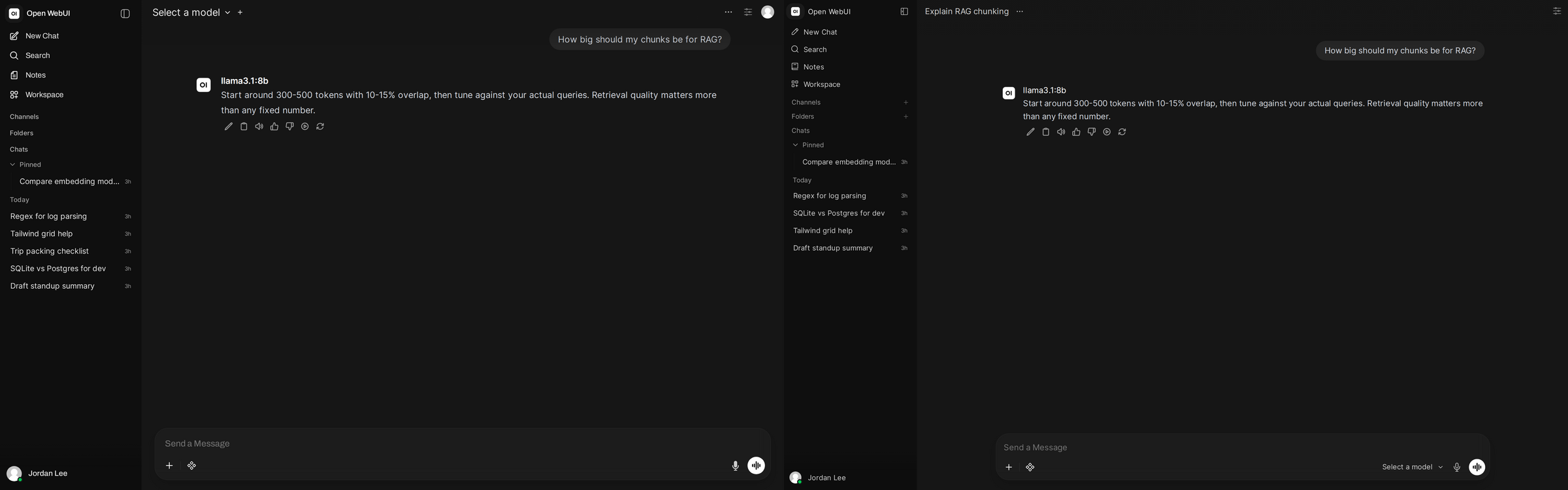 The same conversation in v0.10.2 (left) and v0.11.0 (right): narrower column, lighter typography, tidier spacing
You'll notice one change immediately. Generated chat and note titles are now two to four words, without the emoji. If you liked the old style, edit the title-generation prompt in admin settings to bring it back.
One settings surface, finally#
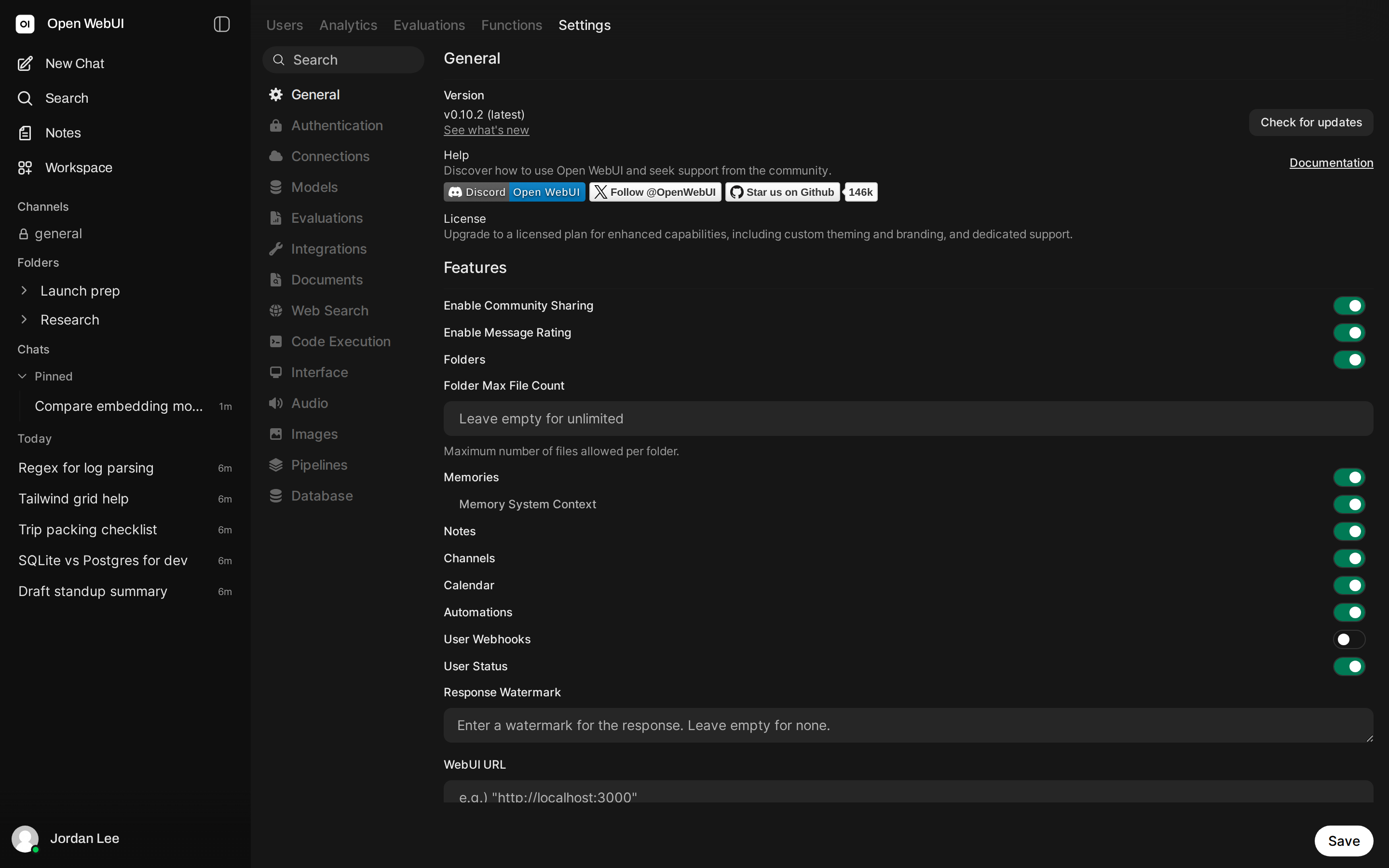
If you open v0.11.0 and go looking for the admin panel, here's the answer up front. It moved into Settings under its own Admin section. Settings used to be two worlds. v0.11.0 brings them together. Two surfaces meant two mental models, and one surface ends the guessing. The analytics dashboard made the same move, and the old admin links redirect so bookmarks keep working. Non-admins see only their own. The search box at the top isn't new, but its reach is. With everything in one place, a single search now covers personal and admin settings alike.
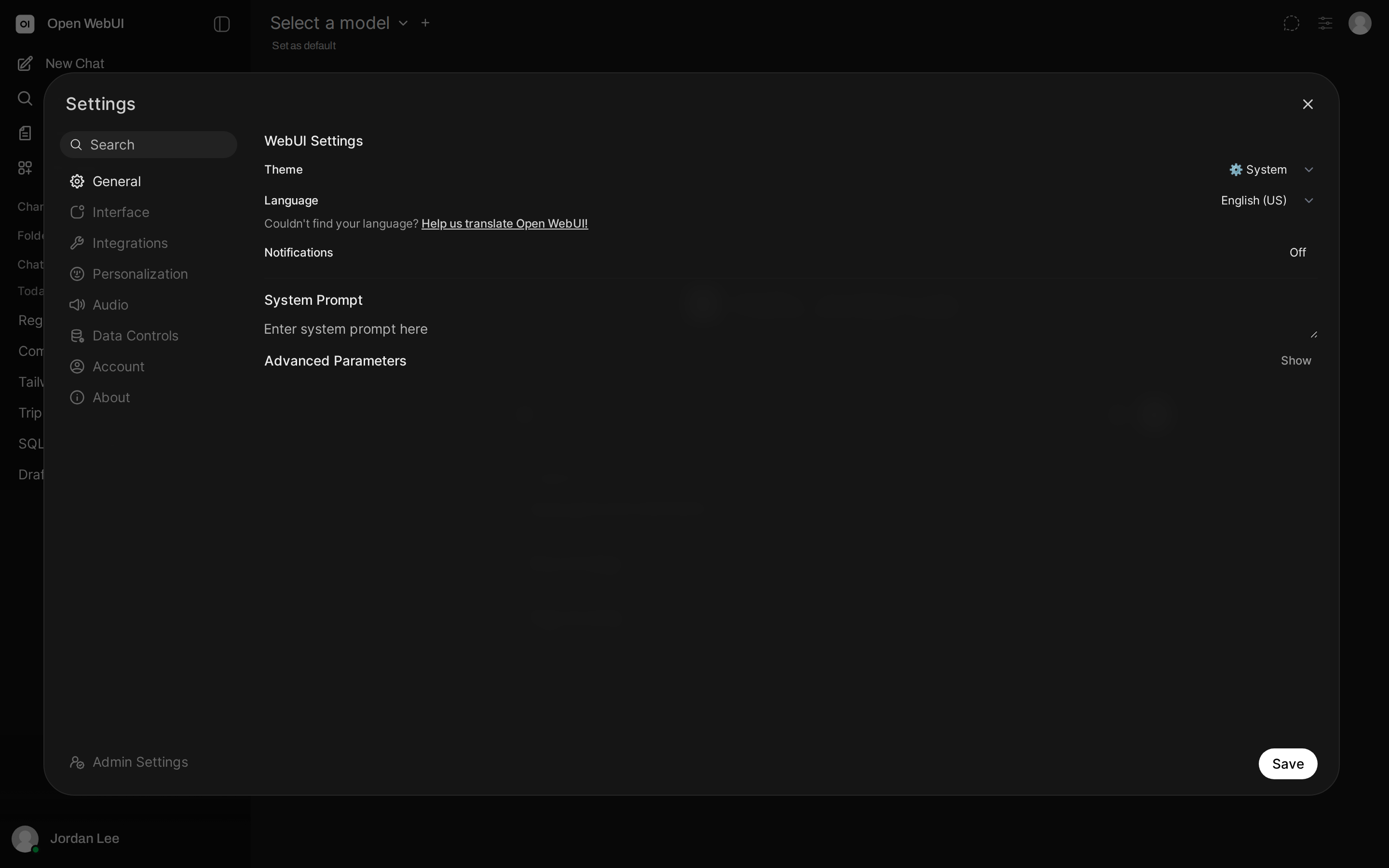
 Before: two worlds. User settings modal and a separate admin panel
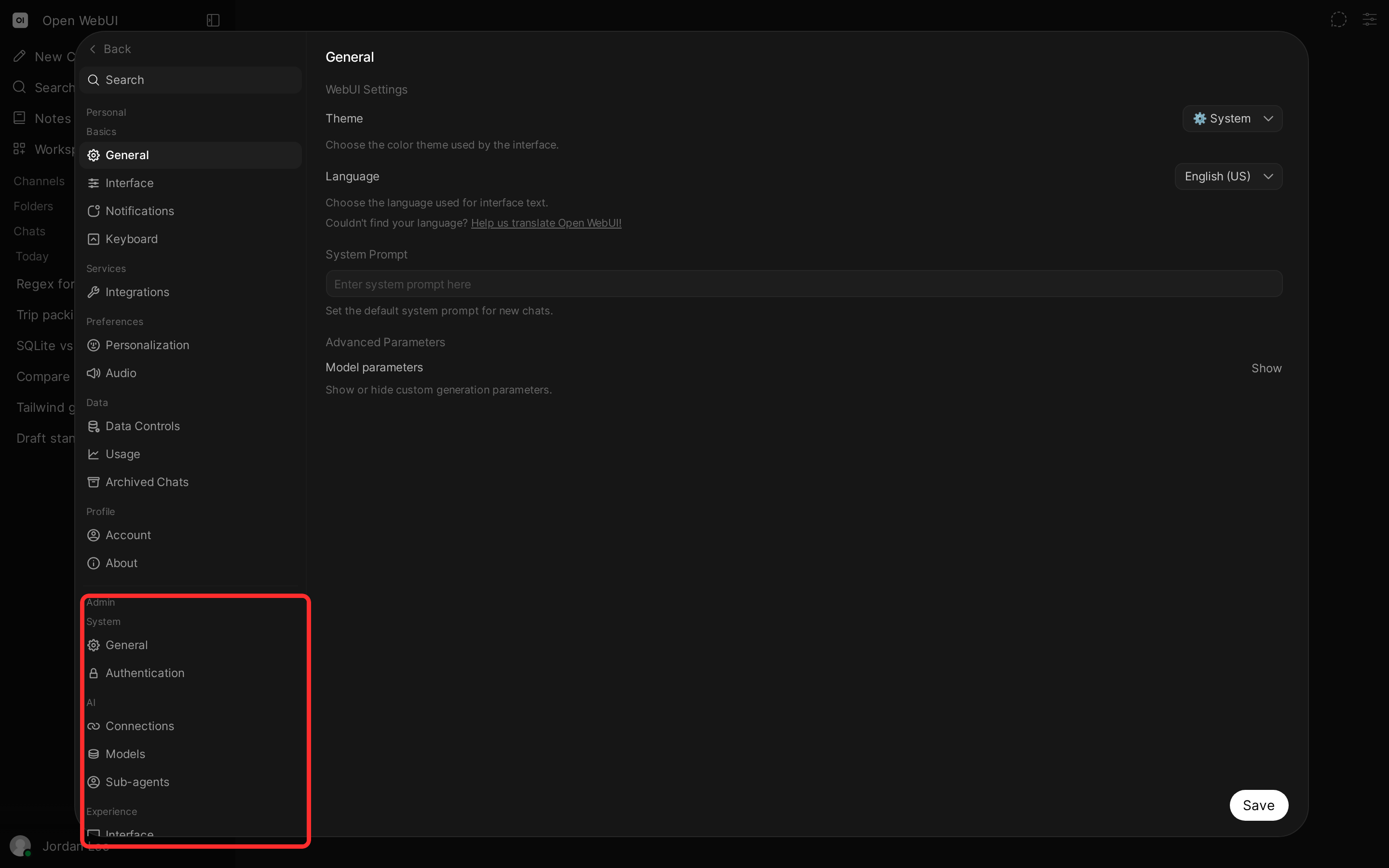 After: one surface. The old admin panel now lives in the highlighted
 Admin section
The reorganization also brings sections that didn't exist before:
Usage. This section visualizes your own activity. An overview row leads with the totals: lifetime and peak token counts, streaks, and your longest active chat. Below that, a heatmap charts your estimated token activity with daily, weekly, and cumulative views. The rest of the page breaks down your activity insights, top models, and most used tools.
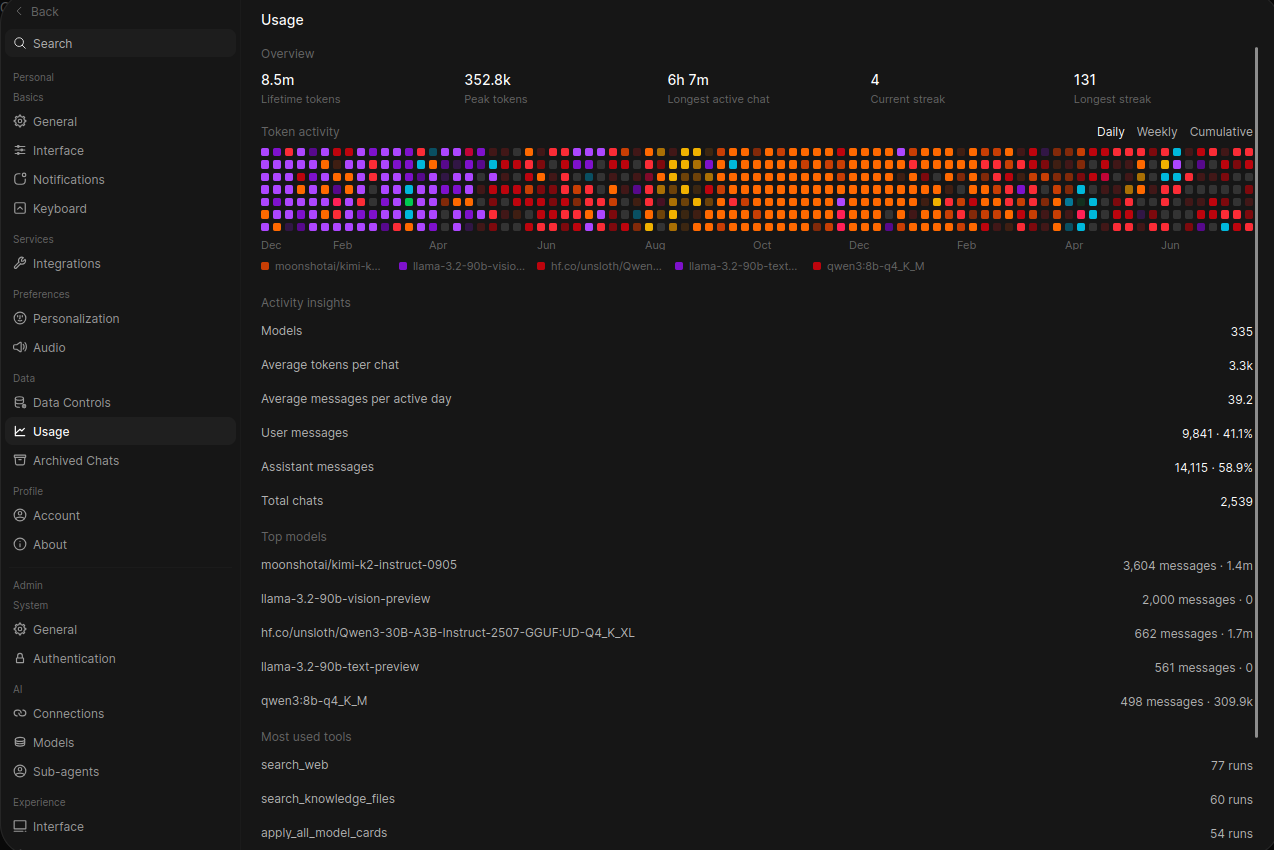 The new
 Usage page
Notifications. Your personal notification webhook used to be one URL in Account settings. It fired only while you were away, and it covered exactly two things: finished chats and channel messages. The new page replaces it with real routing. Register several webhook destinations, subscribe each one to exactly the events it cares about (chats finishing or failing, channel messages, calendar alerts), and set each to fire always or only when you're away. Every destination gets a test button, and your old webhook URL carries over automatically.
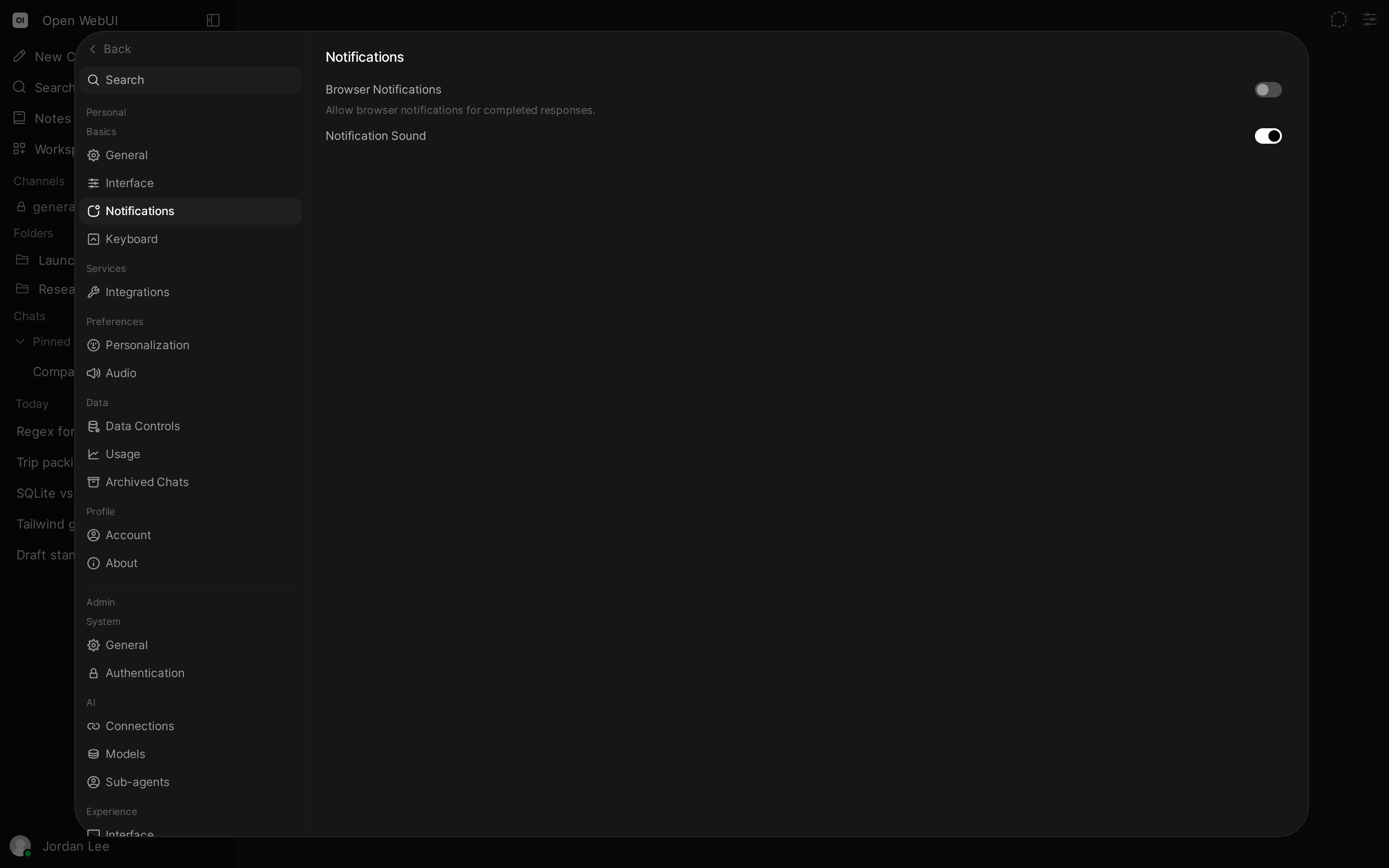 The new
 Notifications section in settings
The bigger shift is who decides. Models now have a built-in notify tool, so the assistant can judge for itself when something deserves your attention. Tell it "only notify me if needed" and a long-running task can reach you after you've moved on, while the routine steps stay quiet. A notification from the model always goes through, even while you're active in the app. The away setting governs the automatic events, not a message you asked for. It can even pick which destination to ping. Admins can switch the tool off per model in the model editor. For admins, the event webhooks that announce things like new signups are a separate system. They haven't moved.
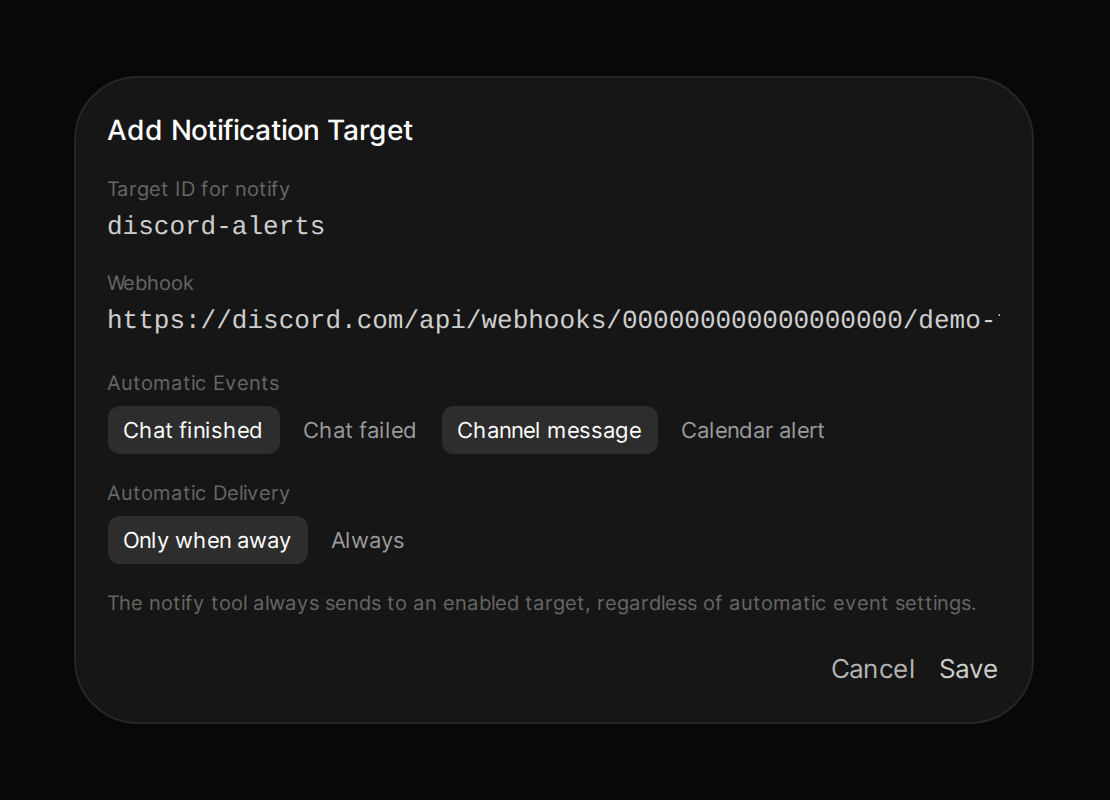 Adding a target: an ID the
 notify tool can call it by, the events it hears, and when it fires
Archived Chats. They graduate from a buried modal to a proper settings section, where the archive is finally searchable and sortable.
The model picker moved to where you type#
The model selector left the header and now sits inside the message input, next to everything else you set before sending. It's a small change with big ergonomics. The reasoning matches the settings merge. Your model choice is part of the message you're about to send, so it belongs with the message, not in the page chrome above it.
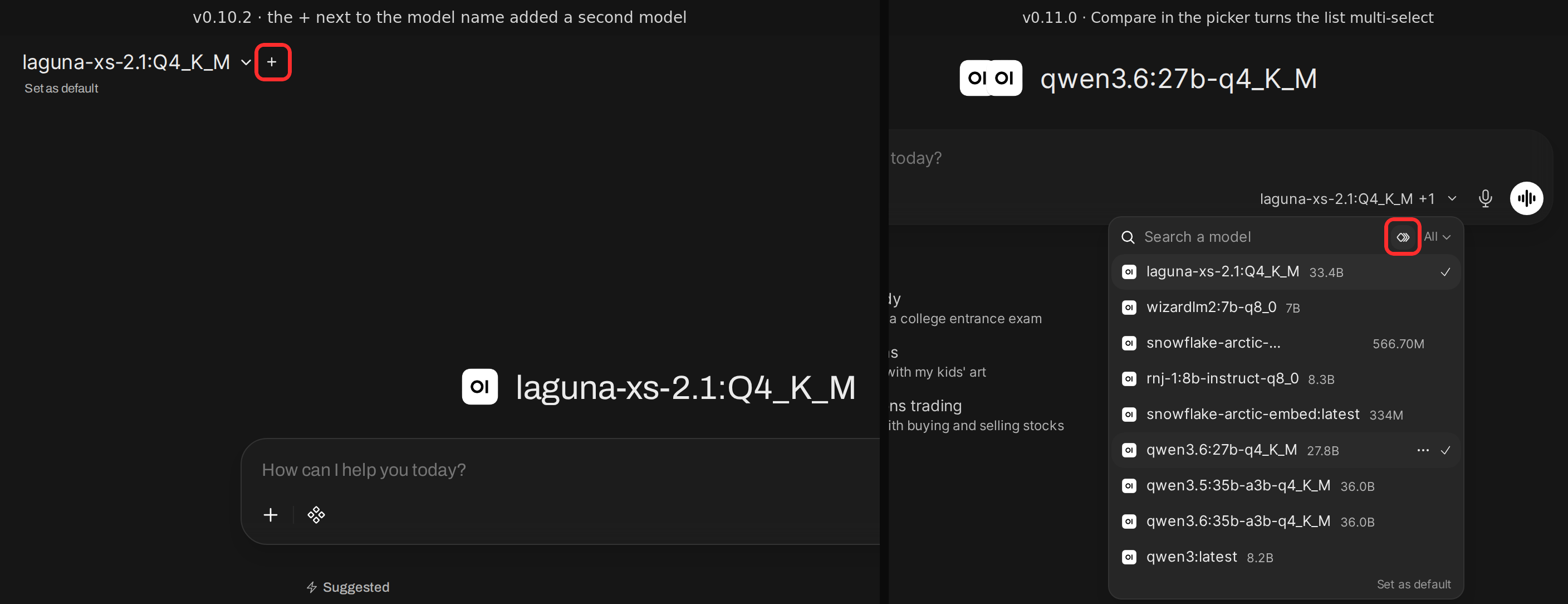 The model picker's old home in the header, and its new one inside the input
The same picker, open#
Seeing it open makes the move concrete. The selector keeps everything you know: the same search, the same model list, the same parameter sizes at a glance. What changes is where it happens. In v0.10.2 the list dropped down from the header, a full screen away from your message. In v0.11.0 it rises from the input itself, and Set as default rides along at the bottom of the panel.
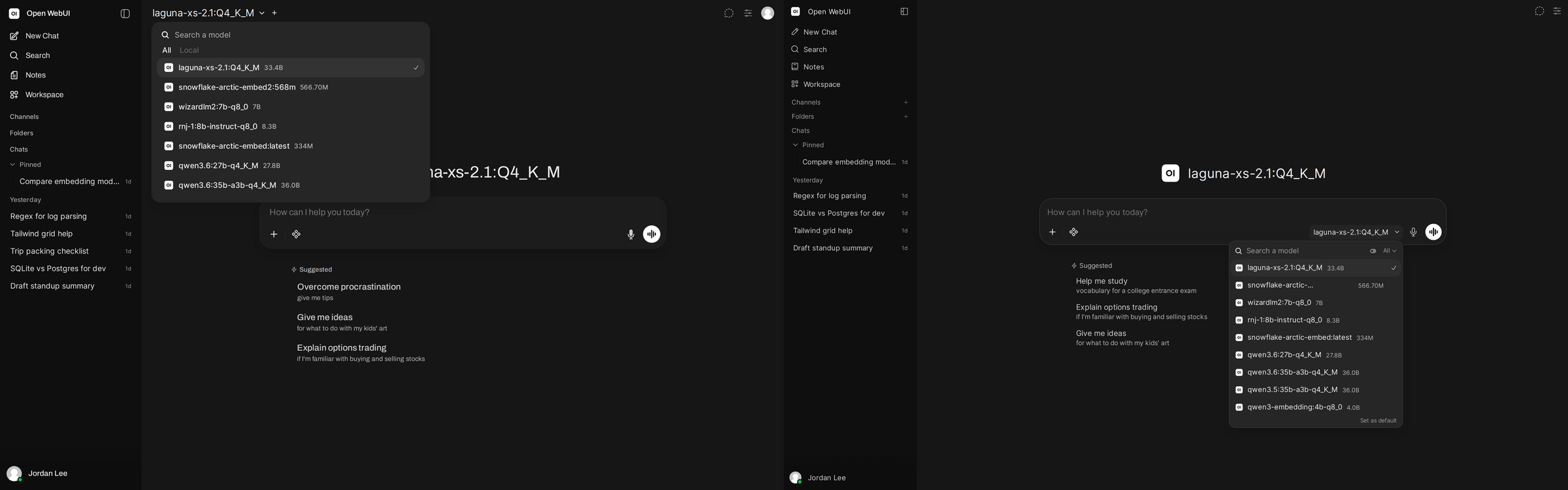 The selector open in both versions: a header dropdown in v0.10.2 and a panel rising from the input in v0.11.0
One old friend moved with it. The + that used to sit next to the model name for adding a second model is now the Compare toggle inside the picker, next to the search box. Toggle it and the list turns multi-select, so running models side by side is tick, tick, send.
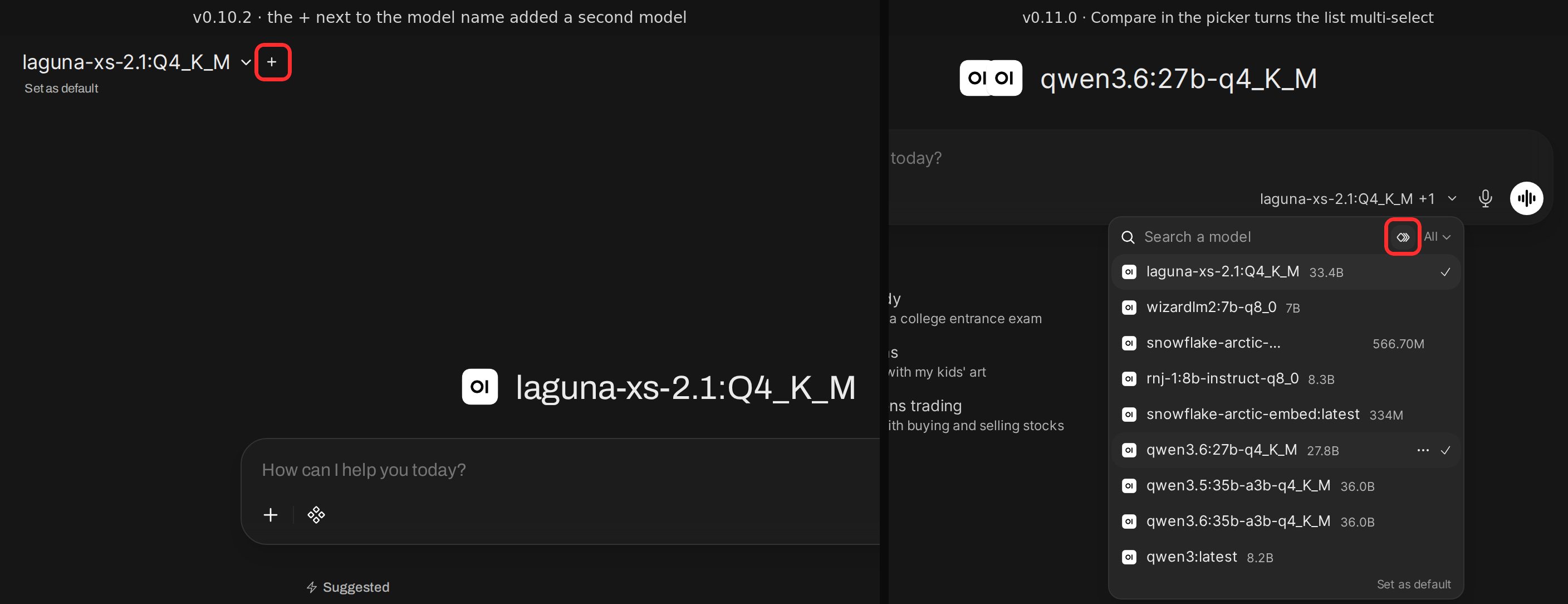 Where the + went: v0.10.2's add-a-model button is now the picker's
 Compare toggle
The sidebar, rebuilt#
The sidebar's six groups (Pinned, Chats, Folders, Channels, Notes, and Models) aren't new. What's new is that they're built on one dedicated section component instead of a patchwork of general-purpose ones, so every header, chevron, and hover state behaves the same way. The goal wasn't novelty but predictability. One component means one behavior to learn. Folders, Notes, and Channels each get an add button right in the header, since those are the sections where you actually create things. A fresh icon set runs through the release too. Roughly thirty-five new icons span the interface, from the settings tabs to the sidebar, which gets the largest share.
Sections expanding, collapsing, and a chat dragged into a folder
Folders grew up along the way. Opening one now takes you to its own page, where chats load a page at a time and sort by title or last update. You can even start a new chat straight from the folder. And a folder now shows how many unread chats sit inside it, with the count updating live.
One more addition rides along with the rebuild. Rest your pointer on a chat and a preview card opens beside the sidebar with the tail of that conversation. Skimming your history no longer means opening every likely candidate. The card is read-only, so a stray hover can't touch anything.
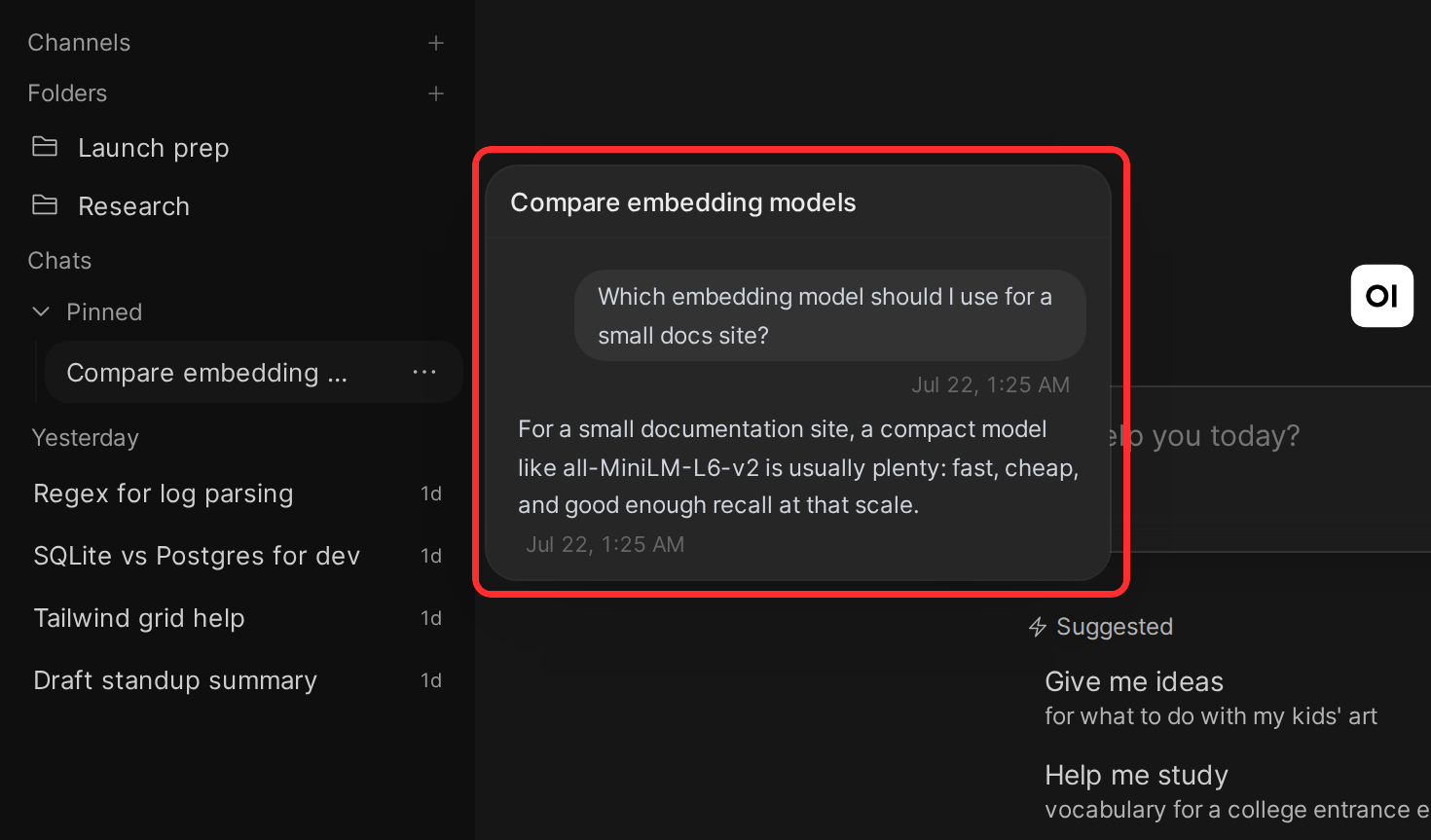 Hover a chat: the conversation's last messages preview beside the sidebar
Your keyboard, your rules#
The three changes here are all about keeping your hands on the keyboard.
Keyboard shortcuts are now remappable. The old keyboard shortcuts pop-up, a list you could read but not touch, is gone. In its place sits a Keyboard section in settings where you click a keyboard shortcut, press the keys you want, and it's rebound. It warns on conflicts, saves to your account, and resets to defaults in one click. Most keyboard shortcuts can be remapped. And if a combination clashes with your browser or operating system, an Enable Keyboard Shortcuts toggle at the top of the same section turns every shortcut off and hides the hints.
The new master switch toggled off and back on, then a rebind: click the chord, press the keys, and you're done
@ attaches anything. Typing @ in the input now searches your models, folders, knowledge collections, and individual files in one menu, live as you type. Pasting a link offers it as a web page or YouTube attachment.
/ runs things. The slash menu lists your saved prompts and skills, grouped and searchable, alongside the built-in commands:
/compactsummarizes earlier turns on demand instead of waiting for the automatic threshold, and the menu shows how full your context is./forkclones the conversation into a new chat./statusopens a panel with context usage, queued messages, running tasks, and the chat ID.
If you've used a terminal-style AI tool recently, this will feel familiar, and that's the point.
The @ menu reaching folders and collections, then the / menu with built-in commands plus your workspace Prompts and Skills
Fill in the blanks before you send#
A model's system prompt can now ask you for input. Write {{chat.variables.tone}} into the prompt, give it a type and some options, and the chat shows a small form when you pick that model. Fill it in once and the values ride along with the conversation, even when you fork or clone it. There are two flavors: chat variables you answer per conversation, and user variables you set once in account settings so any prompt that wants your name or house style can reach for them.
 The same model in both releases: v0.10.2 has nowhere to put the values, v0.11.0 collects them in a form before the message sends
Chat with a note, for real#
Notes had a chat before, but it wore an Experimental tag and a stripped-down input. v0.11.0 makes it the full chat experience: model choice, tools, and file attachments, plus note-aware suggested prompts like summarizing the note or extracting its action items. Ask for changes and the assistant's edits land in the note as it makes them. Each note can keep as many separate conversations as you want.
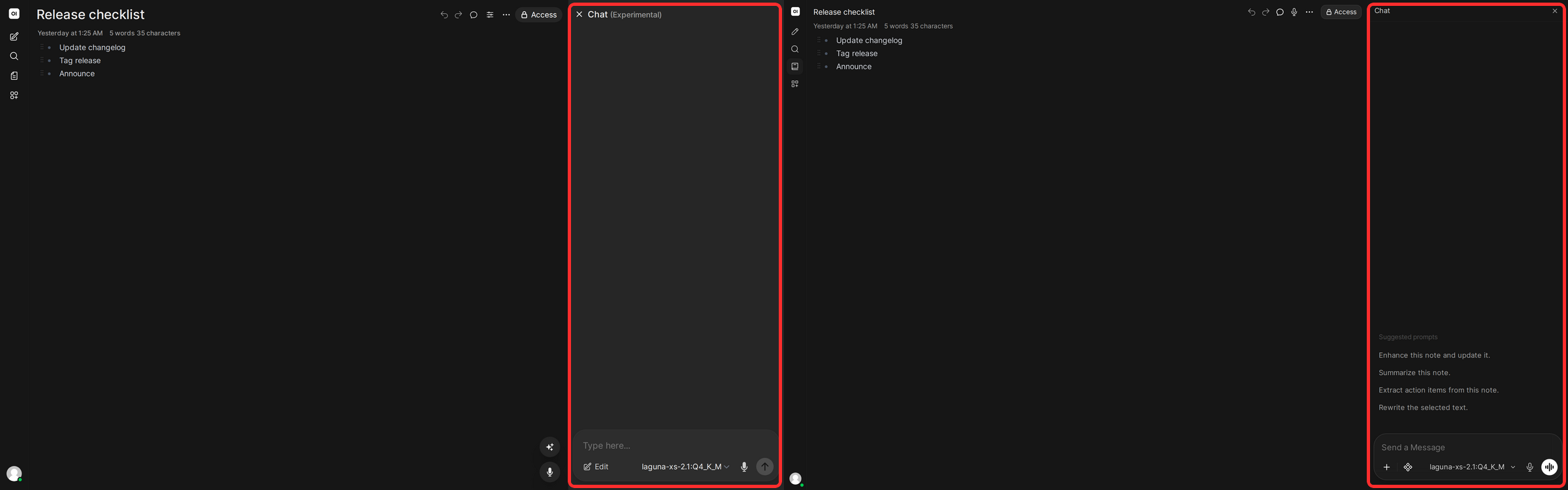 Chatting with a note: the
 Experimental panel in v0.10.2 and the full chat experience in v0.11.0
Group permissions, at a glance#
This one is for admins. The groups list now says how each group is governed. Groups with custom permissions are labeled as such, and groups riding the defaults say so too. An access review no longer means opening every group one by one.
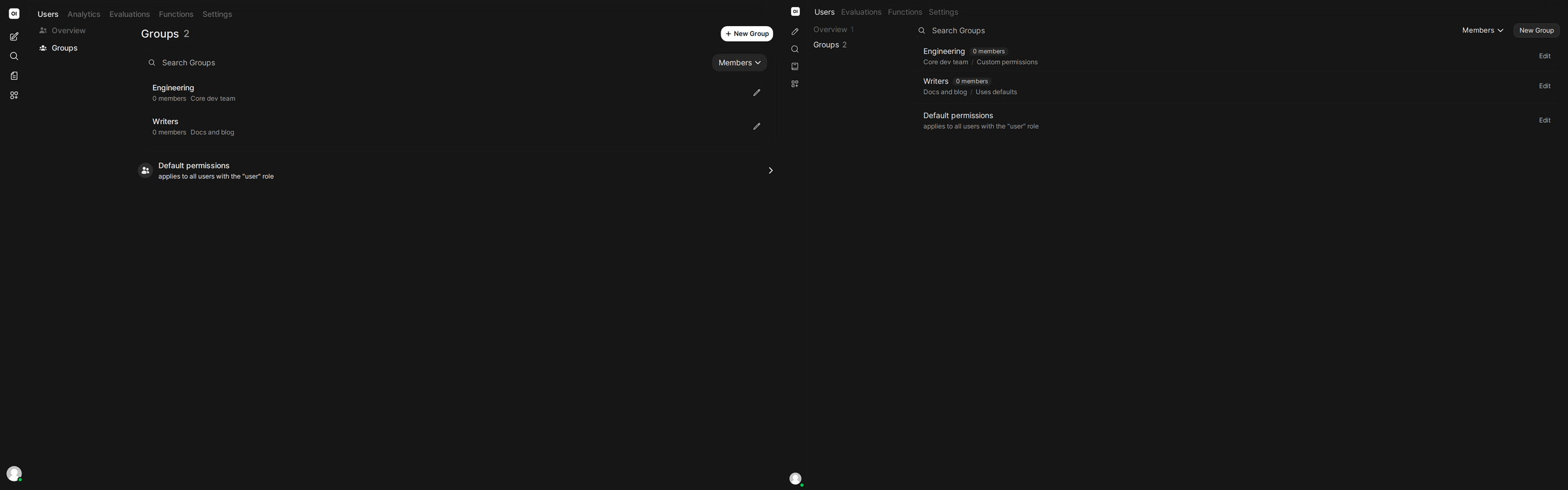 The groups list then and now: governance visible without opening a single group
Models, managed faster#
Admins already knew the Shift trick. Hold it over the model list in v0.10.2 and each row swapped its controls for a single hide toggle. v0.11.0 keeps the gesture and raises the count to four: hide, default, pin, and public or private, all straight from the row. The edit, menu, and enable controls stay put beside them, and none of it needs a round-trip through the model editor. The model-wide defaults moved too. v0.10.2 kept them in a Settings pop-up over the list that held default and pinned models, capabilities, parameters, and prompt suggestions. v0.11.0 builds the same set into a Model Defaults panel at the top of the tab, one Configure button press away.
 Hold
Hold Shift: one hide action in v0.10.2 and four quick actions in v0.11.0
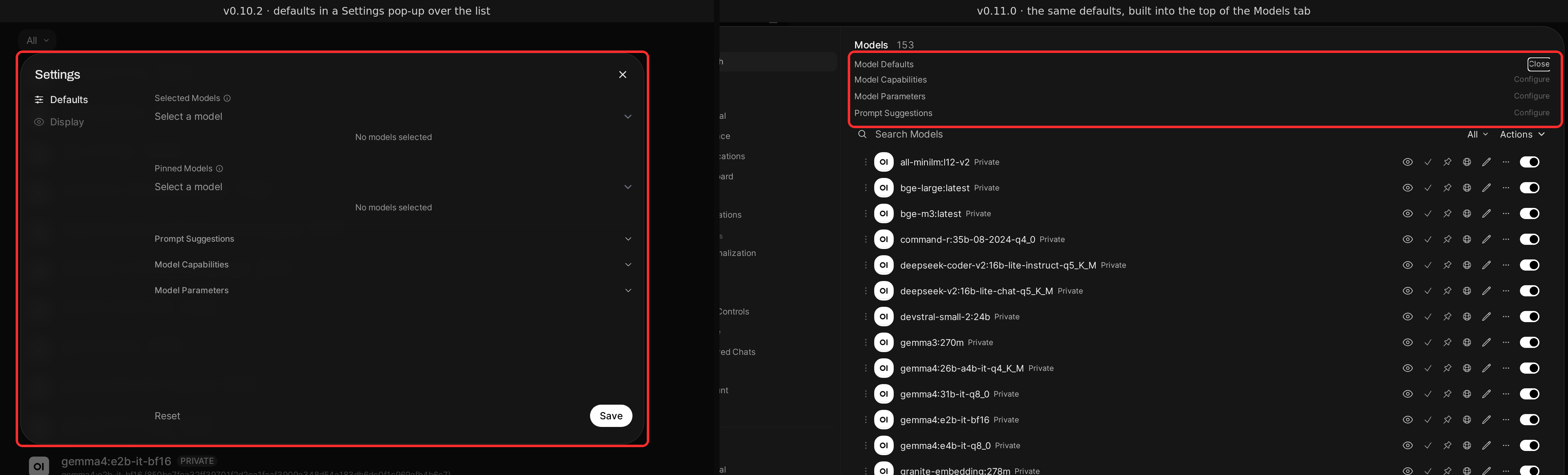 The same defaults in a new home: v0.10.2's pop-up vs the panel built into the top of the tab
Sub-agents, off by default#
The biggest new capability in the release gets its own switch. Sub-agents let a model hand parts of a task to background helpers, and each helper runs its own tool-driven conversation and reports back into your chat. The settings page is refreshingly blunt about the cost: every sub-agent is a real chat with full tool access, and it uses additional LLM calls.
Admins control the blast radius:
- how many sub-agents run at once
- whether they keep running while the parent chat continues
- how many tool loops each one gets
- how much output each one can return
- the system prompt they all inherit
The whole feature ships disabled by default until an admin toggles it on.
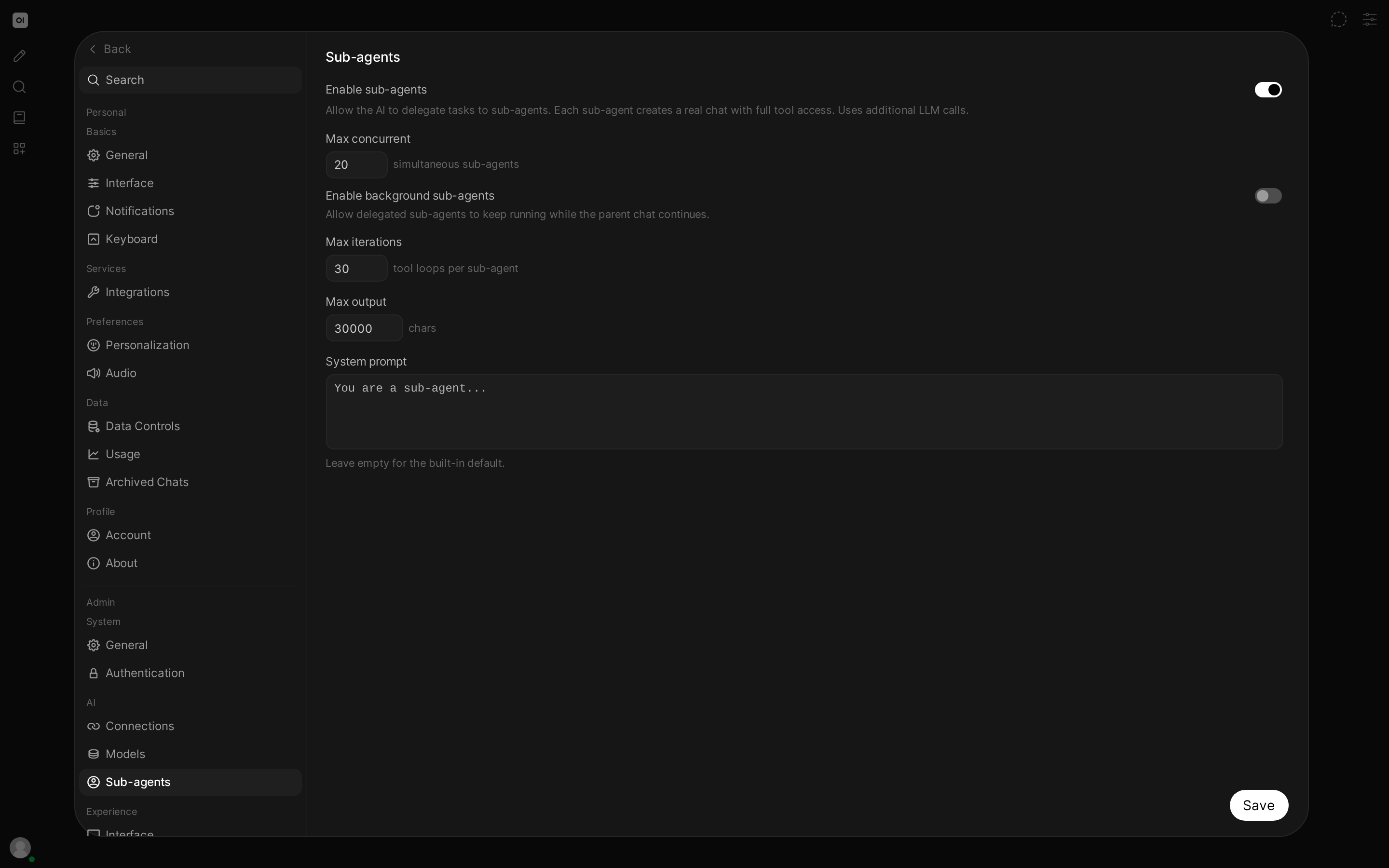 The
The Sub-agents settings page with the feature enabled: concurrency, background execution, iteration and output caps, and a shared system prompt
A tidier workspace#
The workspace pages tell the same reorganization story in miniature. Each page used to carry its own row of create, import, and export buttons. Those actions now sit behind a single Create menu in the header. The tabs count what they hold, so you can see how many models, knowledge bases, prompts, skills, and tools you have without opening each one. And the Title and Updated at column headers sort the list now across all workspace pages.
 The workspace, then and now: three separate buttons become one Create menu, the tabs gain counts, and the column headers sort
Smaller touches you'll notice#
The pickers in the model editor are searchable with select-all and clear-all. Message timestamps now show on hover in your local date and time format. A new Default Upload Mode setting under Interface decides whether uploads start out using the entire document or focused retrieval. A new interface setting stops the view from following a reply as it's written, so you can read earlier text while the model keeps going. Accessibility got serious attention too. The regenerate control now works for keyboard and screen-reader users, and sidebar toggles announce what they do.
Also in this release#
v0.11.0 isn't only interface work. The assistant can set chat timers that bring a prompt back after a delay. Shared folders now support collaboration under read/write permissions. Shared chats gain an Open mode where anyone with the link can read the chat without signing in. It ships off until an admin enables it, and open pages ask search engines to stay away. Admins get switches to disable the plugin surfaces entirely and to restrict sharing with groups, and LDAP setups can now sync group memberships from the directory at sign-in. OAuth and OIDC sign-in gains an on-off switch of its own, so a provider can be paused without clearing its configuration. Web search can now point at a self-hosted OpenSERP instance, which needs no API key. And there's a long tail of performance work: faster model lists and folder loading, quicker chat search on PostgreSQL, steadier long streamed replies, and less overhead on every request.
The fix list is long this time, and some of it may explain something that's been bugging you. Assistant replies are no longer saved without their text, so copying, exporting, and searching return the reply. Messages no longer render blank on Safari, iPhone, and iPad. Folders page through every chat instead of stopping at sixty. Dictation no longer repeats what you said in an earlier recording. The full changelog has every entry with links.
Before you upgrade#
Two things worth taking seriously:
This release includes security and access-control fixes. As always, not every fix is enumerated immediately. Update production deployments at your earliest convenience.
This release includes database schema changes. Back up your database before upgrading, and if you run multiple workers or load-balanced instances, update them all at once. Rolling updates will fail on the schema mismatch.
Then update the usual way by pulling the latest image or running pip install -U open-webui, and go remap the keyboard shortcut that's been annoying you. You've earned it.
Get involved:
- Update and open settings. One search now finds everything.
- Tell us what the reorganization breaks for your muscle memory. Feedback shapes the follow-up releases.
- Read the full changelog for every change, with commits and issues linked.
The Open WebUI Team